TCP/IP MultiPoint EIE
The TCP/IP MultiPoint EIE communication device provides an interface to multiple RTUs based on IP address and port. Its architecture is conceptually unique among CygNet communication EIEs, optimizing communication channels by reducing server load and restricting network access. It also gives host resources more fine-tuned control over communication with field devices.
Note: With this new EIE, settings changes are tied to destination IP address and/or port. TCP/IP MultiPoint properties belong to the destination communication device, not the CygNet remote device.
|
TCP/IP MultiPoint EIE Device Editor |
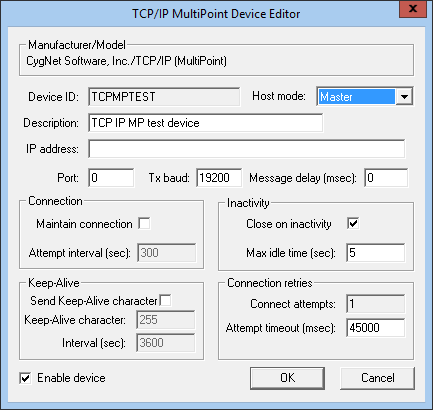
For information about overriding communication device settings from the remote device, see Overriding Communication Settings.
A 64-bit version of this EIE is available. See 64-bit Device Drivers.
Configuring a TCP/IP MultiPoint Communication Device
The following configuration procedure provides a basic sequence of steps to take to set up a TCP/IP MultiPoint communication device. Your specific needs dictate exactly what settings you choose to use.
Additional override settings are available on a per-remote-device basis.
To Configure a TCP/IP MultiPoint Communication Device
- Open your DDS and click the Comm Devices page.
- Position your pointer over the white space of the service pane, right-click, then select New Comm Device. The Select a Device Type... dialog box appears.
Note: If you right-click on an existing communication device, that device is used as a template for your new device.
- Either double-click Comm. Device - TCP/IP MultiPoint, or highlight it and click OK. The TCP/IP MultiPoint Device Editor dialog box appears.
- Configure the TCP/IP MultiPoint communication device according to your needs. See Device Properties. Click OK to save your TCP/IP MultiPoint communication device editor settings.
To View Connection Status
The following steps only apply after you've properly configured your TCP/IP MultiPoint communication device(s) and associated remote device(s).
- Open your UIS in CygNet Explorer.
- Highlight the TCP/IP MultiPoint communication device you want to view connection status for.
- Right-click and select View Connection Status.
- View connection details.
See also Viewing Connection Status.
Device Properties
The following table lists and describes properties from the TCP/IP MultiPoint Device Editor dialog box. Although this is the comm device editor, the TCP/IP MultiPoint EIE requires you to make advanced TCP/IP destination settings on the remote device editor for each connected remote device.
Note: The TCP/IP Destination Settings dialog box is located on remote device editors, not on comm device editors.
| Property | Description | ||||||
|---|---|---|---|---|---|---|---|
|
Device ID |
The unique identifier of an instance for this device. This free-form name must be unique in the DDS and the FAC. That is, it must be a name not used by any other communication device, import/export device, remote device, or facility. CygNet naming standards for device ID are as follows:
|
||||||
|
Host Mode |
Master: This default mode allows any message to be sent. NonMaster: This mode is remote device EIE-specific. It is not designed to allow write messages to be sent to an RTU. However, because each remote device EIE specifies what a write message is, you might still be able to send some write messages. |
||||||
|
Description |
A free-form description of the device. 32 character maximum. |
||||||
| IP address |
The address of the field comm device. This field is overwritten if you enter a different IP address on the TCP/IP Destination Settings dialog box of an associated remote device. |
||||||
| Port |
The port number of the field comm device. This field is overwritten if you enter a different port on the TCP/IP Destination Settings dialog box of an associated remote device. |
||||||
|
Tx baud |
The transaction baud used to format messages. Note: This field only applies to Totalflow remote devices. |
||||||
|
Message delay (msec) |
The delay (in milliseconds) to wait before sending a message to the field device. If the field device also has a message delay, the greater value takes precedence. |
||||||
| Connection | |||||||
|
Maintain connection |
Check this box to maintain connection with the field comm device. Maintain connection and Close on inactivity work independently of each other. If both are set, Maintain connection takes precedence. |
||||||
|
Attempt interval (sec) |
Defines the interval (in seconds) between attempts to reestablish connect with a field comm device if Maintain connection is enabled. Note: Do not set the value of this property below the default unless you have a good metric for changing it. If you do lower this value, take into account the Attempt Timeout. |
||||||
| Inactivity | |||||||
|
Close on inactivity |
Check this box to close connection to a field comm device when no activity has occurred for the period of time specified by Max Idle Time (sec). | ||||||
|
Max idle time (sec) |
The maximum duration (in seconds) to allow for inactivity. The field comm device could have its own preset duration for inactivity. If the field comm device's period is shorter than Max Idle Time (sec), the connection is closed by the field comm device. |
||||||
| Keep-Alive | |||||||
|
Send Keep-Alive character |
Check this box to send a character to the field comm device to maintain a connection. This ensures that the field comm device does not terminate connection. Use of this property depends upon the field comm device. This property is applicable only when Maintain connection is enabled. |
||||||
|
Keep-Alive character |
The character (ASCII value) to send to keep the connection alive. | ||||||
|
Interval (sec) |
The interval (in seconds) between sends of the Keep-Alive Character. | ||||||
| Connection retries | |||||||
|
Connection attempts |
Number of attempts to try to connect to the field comm device. The value of this property is always 1. | ||||||
| The time (in milliseconds) to wait between attempts to connect to the field comm device before marking the attempt as failed. | |||||||
|
Enable Device |
Select whether to enable or disable the device. The default setting is disabled. If an invalid configuration is detected, the device will automatically be disabled. The device can be re-enabled after the invalid configuration is fixed. |
||||||


